
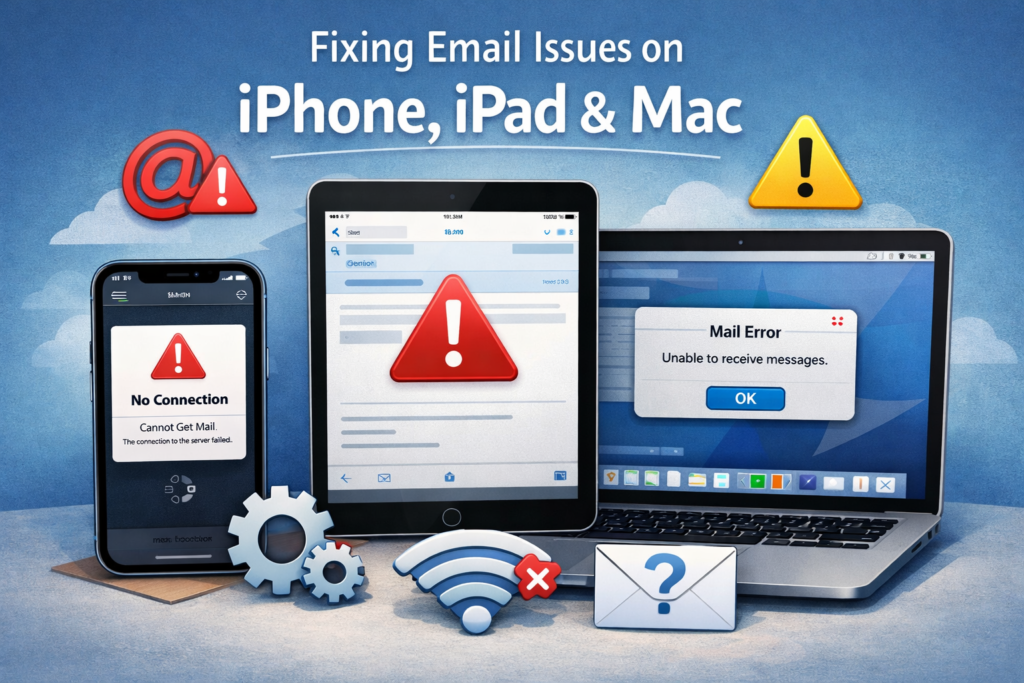
iPhone, iPad, and Mac (Apple Mail + iCloud + Gmail/Outlook/Yahoo/Microsoft 365)
If email has stopped working on your iPhone, iPad, or Mac—don’t worry.
Most problems come down to one of five things: connectivity, sync settings, sign-in/authentication, mailbox rules, or storage limits.
This guide covers Apple Mail and iCloud Mail, Gmail, Outlook/Hotmail, Yahoo, work/school Microsoft 365, and custom-domain IMAP/SMTP accounts.
Step 1: Identify the symptom (pick the closest match)
Can’t receive email
Can’t send email
Keeps asking for a password / sign-in loop
Emails are missing or not syncing
Attachments won’t send/download
Too much spam / real mail going to Junk
Mail app is slow, frozen, or crashing
If you see an error message, copy the exact wording (or take a screenshot of the error screen).
- Quick Fixes
- Can’t Receive
- Can’t Send
- Password Issue
- Missing Or Syncing
- Attachments Issue
- Spam
- Hacking or Phishing
Solves most issues
1) Check your connection
Open Safari (or any web page) to confirm internet works.
Toggle Airplane Mode ON for 10 seconds, then OFF.
Restart your device.
2) Confirm the email account is switched on
iPhone/iPad: Settings → Apps → Mail → Mail Accounts → tap your account → make sure Mail is ON
Mac: System Settings → Internet Accounts → select your account → ensure Mail is enabled
What you should see: your account stays signed in and Mail stops repeatedly asking for a password.
(Apple Mail)
Check Mail sync settings (iPhone/iPad)
Settings → Apps → Mail → Mail Accounts → Fetch New Data
Turn Push ON (if available)
Tap the account and set Fetch to a reasonable interval (or Push)
Then open Mail and pull down to refresh.
What you should see: a loading spinner and new messages arriving.
1) Check the Outbox
Open Mail and look for Outbox.
If messages are stuck, they may include a large attachment or the account needs re-authentication.
2) Send a simple test email
Send an email to yourself with no attachment.
If it works: the issue is usually the attachment size/type.
If it fails: note the exact error message.
What you should see: the email appears in Sent and arrives in your Inbox.
Asking for your password (or sign-in fails)
This is common after:
a password change,
a new device,
an iOS/macOS update,
or a provider security update (especially Gmail/Microsoft 365).
Fix
Sign in on the provider website first (Gmail/Outlook/Yahoo/Microsoft 365) to confirm the password works.
If your provider uses two-step verification, you may need an app password (a provider-generated password for mail apps).
If the password is correct but Apple Mail still fails: remove and re-add the account.
Remove & re-add
iPhone/iPad: Settings → Apps → Mail → Mail Accounts → tap account → Delete Account → Add Account
Mac: System Settings → Internet Accounts → remove account → add again
Important: This may remove local drafts/outbox items, so note anything important first.
Missing or not syncing
Most “missing mail” is in a different folder or hidden by a filter.
Check these in order:
Look in Archive / All Mail / Junk / Trash
Gmail accounts often put mail in All Mail rather than Inbox.
Use Mail search for a sender or subject line.
Check rules/filters/forwarding in your provider webmail (especially for work/school accounts).
Check storage/quota:
iCloud storage or provider mailbox full can stop mail arriving.
What you should see: the missing emails appear in Archive/All Mail, or you find a rule moving them.
If attachments won’t send or download
Try sending/downloading a smaller file first.
Switch network (Wi-Fi ↔ cellular).
For large files, use a share link (iCloud Drive or provider sharing) instead of attaching.
What you should see: small attachments succeed; large files work via link.
If spam is out of control (or real mail goes to Junk)
Mark messages as Junk or Not Junk to train filters.
Add trusted senders to contacts.
Review your provider spam settings in webmail.
If the message looks suspicious, don’t click links—go directly to the provider site.
If you suspect hacking or phishing
If you notice unknown devices, emails being sent that you didn’t send, or unexpected forwarding rules:
Change your email password using a trusted device (avoid email links).
Turn on two-factor authentication.
Sign out of unknown devices/sessions.
Check forwarding and rules/filters, then re-add the account to Apple Mail if needed.